
Before you start
- A free GiftcardLayers account.
- A Claude account. Claude's free plan can have one custom connector.
- On a Claude Team or Enterprise plan, an owner adds the connector first.
Connect Claude on the web
- In Claude, open Customize, then Connectors.
- At the top right choose Add, then Add custom connector.
- Name it GiftcardLayers and paste https://giftcardlayers.com/mcp. Keep the settings Claude detects and press Add.
- Press Connect, sign in to GiftcardLayers and press Allow.
- In a chat, open the + menu, then Connectors, and check that GiftcardLayers is on.
On a Team or Enterprise plan, an owner adds it in Organization settings, then Connectors. Each person then connects with their own GiftcardLayers account.
Desktop, mobile and Claude Code
Desktop app
The same steps: Customize in the sidebar, then Connectors. The sign-in page opens in your browser.
Mobile app
Connect once on the web or desktop. GiftcardLayers then works in the mobile app with the same Claude account.
Claude Code
Run: claude mcp add --transport http giftcardlayers https://giftcardlayers.com/mcp
Then type /mcp, choose giftcardlayers and sign in.
Example requests
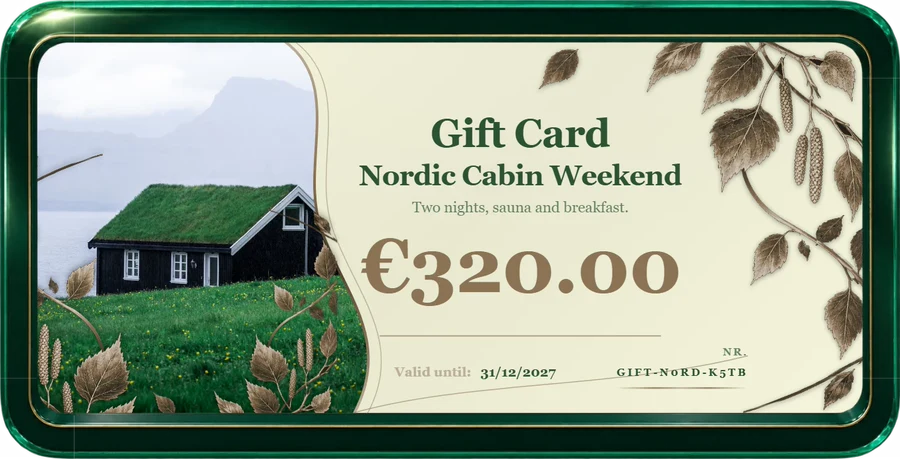
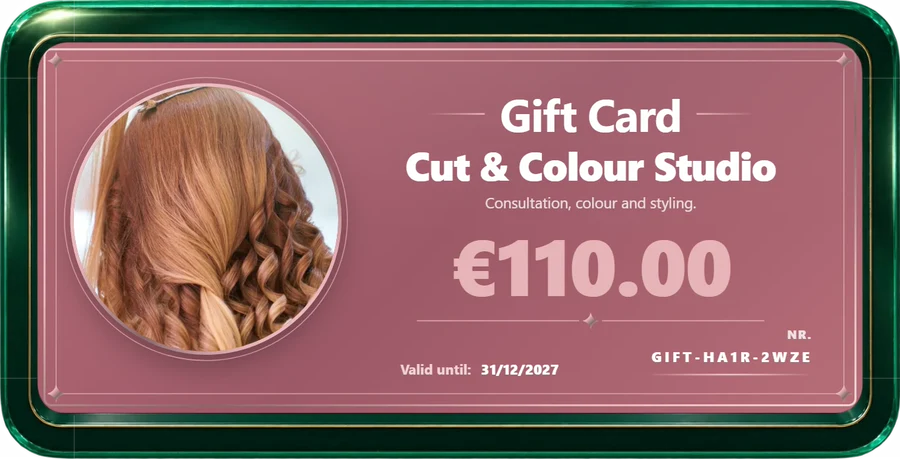
- Design a gift card for my spa with €50, €100 and €150, in colours that match my logo. Show me the picture before it goes on sale.
- How did my gift card sales go in the last 30 days compared with the 30 days before? Which gift card sells best?
- Make a section for my website with my three best gift cards and give me the code to paste.
- Read my gift card delivery email and make it warmer and shorter. Show me how it looks before you save it.
- Find the last order from anna@example.com. Was the email delivered, and has the gift card been used?
What Claude can do
Design
- Gift cards and combined gift cards
- Gift card pages and buy forms
- Website sections
- Checkout and gift page
- Emails, PDF and invoice
Run the shop
- Sales and customers
- Orders and sent emails
- Check and redeem a code
- Redeem field and booking settings
See its own work
Claude can look at a picture of the card, page, checkout, email or PDF on desktop and phone, and fix what looks off before you publish.
Use your photos
It imports pictures from your website. For files on your computer or phone, it gives you an upload page in your account.
What stays with you
- Connecting Stripe, refunds and payouts. Claude can't pay, refund or move money.
- Your plan, passwords and sign-in.
- Full gift card codes, gift links and API keys. Claude sees only the last four characters of a code, unless you give it the code yourself.
- Deleting orders.
Confirmations and view only
New gift cards start off sale until you say go. Before Claude redeems, undoes or deletes something, emails your customers, changes invoice details, API keys or webhooks, or puts your own code on a page, GiftcardLayers makes it show you exactly what will happen and wait for your yes.
In GiftcardLayers, Settings, Connect Claude shows what is connected and the latest activity. Switch it to View only and Claude can read and advise, but change nothing.
Disconnect
- In GiftcardLayers: open Settings, then Connect Claude, and disconnect it.
- In Claude: open Customize, then Connectors, choose GiftcardLayers and press Disconnect or Remove.
The first takes back the permission, the second signs Claude out. Your gift cards and orders stay as they are. What is stored about the connection is in our Privacy Policy at giftcardlayers.com/privacy.
If something doesn't work
| What you see | What to do |
|---|---|
| Claude can't reach the server | Check the address is exactly https://giftcardlayers.com/mcp, without a space or a slash at the end. |
| Connect or Reconnect keeps showing | Press it, sign in to GiftcardLayers and press Allow. |
| Claude doesn't use GiftcardLayers | Open the + menu in the chat, then Connectors, and turn GiftcardLayers on. |
| This connection is view-only | Open Settings, Connect Claude in GiftcardLayers and choose Can make changes. |
| The confirmation has expired | A confirmation works for five minutes and once. Ask Claude to do it again. |
| Too many requests | Wait a minute and continue. Pictures are limited to 40 an hour. |
| A picture takes long | The first one can take up to 40 seconds. Ask Claude to try once more. |
Support
Still stuck? Write to us and say what you asked Claude and what it answered.
Last updated: